
All in One View
Content from What is Web Scraping?
Last updated on 2026-02-26 | Edit this page
Overview
Questions
- What is web scraping and why is it useful?
- What are typical use cases for web scraping?
Objectives
After completing this episode, participants should be able to…
- Be able to navigate around a website, understanding the concept of structured data
- Discuss how data can be extracted from web pages
What is web scraping?
Web scraping is a technique for extracting information from websites. This can be done manually but it is usually faster, more efficient and less error-prone to automate the task.
Web scraping allows you to acquire non-tabular or poorly structured
data from websites and convert it into a usable, structured format, such
as a .csv file or spreadsheet.
Scraping is about more than just acquiring data: it can also help you archive data and track changes to data online.
It is closely related to the practice of web indexing, which is what search engines like Google do when mass-analysing the Web to build their indices. But contrary to web indexing, which typically parses the entire content of a web page to make it searchable, web scraping targets specific information on the pages visited.
For example, online stores will often scour the publicly available pages of their competitors, scrape item prices, and then use this information to adjust their own prices. Another common practice is “contact scraping” in which personal information like email addresses or phone numbers is collected for marketing purposes.
Web scraping is also increasingly being used by scholars to create data sets for text mining projects; these might be collections of journal articles or digitised texts. The practice of data journalism, in particular, relies on the ability of investigative journalists to harvest data that is not always presented or published in a form that allows analysis.
Example: Scraping parliamentary websites for contact information
In this workshop, we will learn how to extract information from various web pages. Different webpages can have widely differing formats which will affect our decisions as to which method of scraping data might be appropriate.
Before we can make such decisions we need to have some understanding of the makeup of a webpage. Let’s start by looking at the list of members of the Canadian parliament, which is available on the Parliament of Canada website.
This is how this page appeared in December 2025:
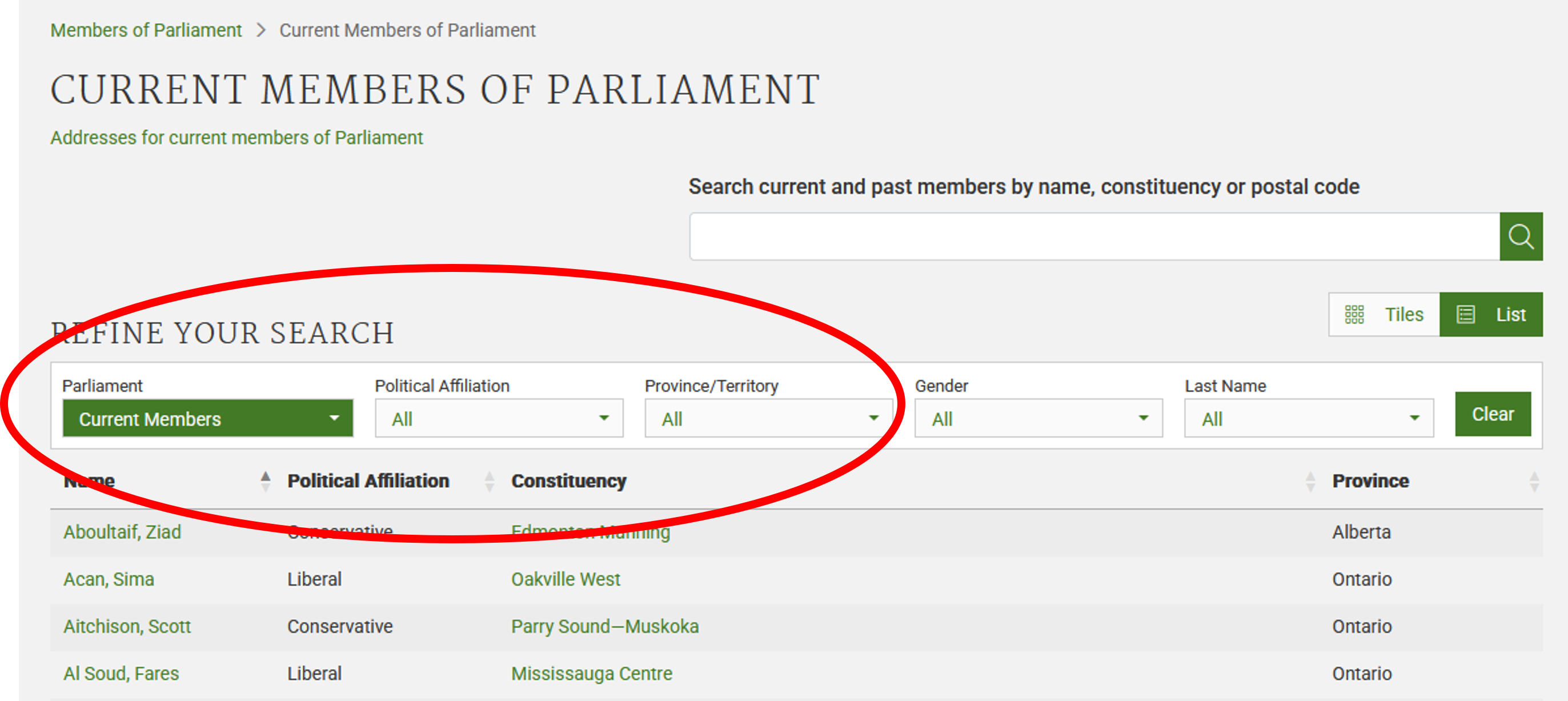
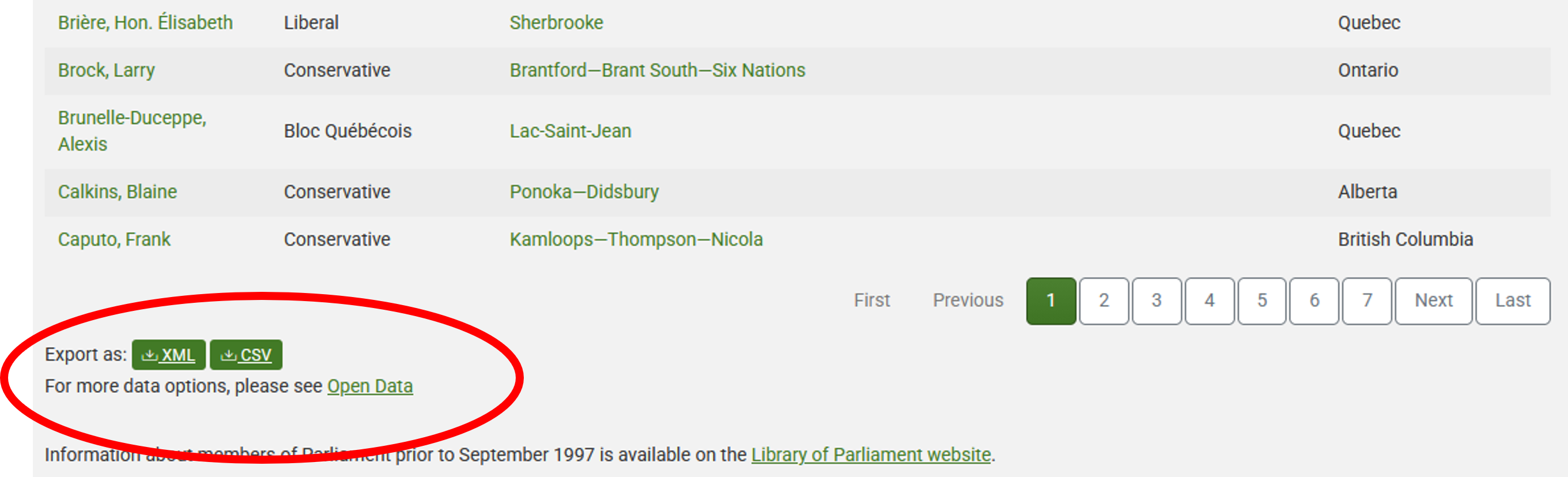
There are several features (circled in the image above) that make the
data on this page easier to work with. The search, reorder, refine
features and display modes hint that the data is actually stored in a
(structured) database before being displayed on this page. The data can
be readily downloaded either as a comma separated values
(.csv) file or as XML for re-use in their own database,
spreadsheet or computer program.
Even though the information displayed in the view above is not labelled, anyone visiting this site with some knowledge of Canadian geography and politics can see what information pertains to the politicians’ names, the geographical area they come from and the political party they represent. This is because human beings are good at using context and prior knowledge to quickly categorise information.
Computers, on the other hand, cannot do this unless we provide them with more information. If we examine the source HTML code of this page, we can see that the information displayed has a consistent structure:
HTML
(...)
<tr role="row" id="mp-list-id-25446">
    <td data-sort="Allison Dean" class="sorting_1">
        <a href="/members/en/dean-allison(25446)">
            Allison, Dean
        </a>
    </td>
    <td data-sort="Conservative">Conservative</td>
    <td data-sort="Niagara West">
        <a href="/members/en/constituencies/niagara-west(1124)">Niagara West</a>
    </td>
    <td data-sort="Ontario">Ontario</td>
</tr>
(...)
Using this structure, we may be able to instruct a computer to look for all parliamentarians from Alberta and list their names and caucus information.
Structured vs unstructured data
When presented with information, human beings are good at quickly categorizing it and extracting the data that they are interested in. For example, when we look at a magazine rack, provided the titles are written in a script that we are able to read, we can rapidly figure out the titles of the magazines, the stories they contain, the language they are written in, etc. and we can probably also easily organize them by topic, recognize those that are aimed at children, or even whether they lean toward a particular end of the political spectrum. Computers have a much harder time making sense of such unstructured data unless we specifically tell them what elements data is made of, for example by adding labels such as this is the title of this magazine or this is a magazine about food. Data in which individual elements are separated and labelled is said to be structured.
Let’s look now at the current list of members for the UK House of Commons.
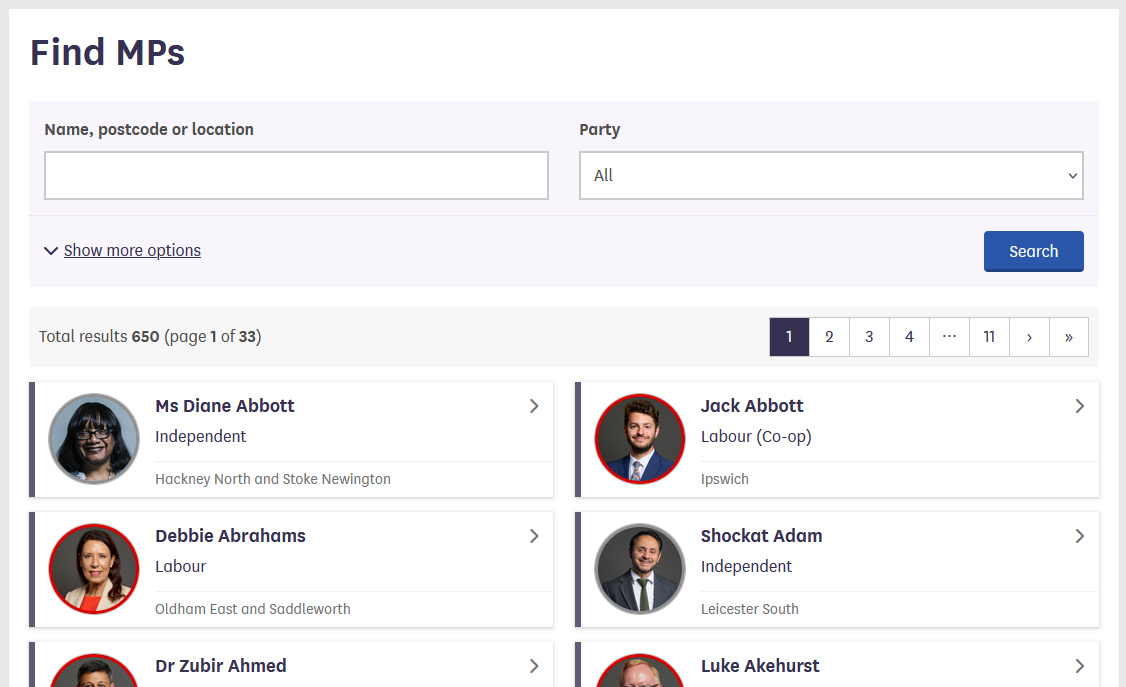
This page also displays a list of names, political and geographical affiliation. There is a search box and a filter option, but no obvious way to download this information and reuse it.
Here is the code for this page:
HTML
(...)
<a class="card card-member" href="/member/172/contact">
    <div class="card-inner">
        <div class="content">
            <div class="image-outer">
                <div class="image"
                     aria-label="Image of Ms Diane Abbott"
                     style="background-image: url(https://members-api.parliament.uk/api/Members/172/Thumbnail); border-color: #909090;"></div>
            </div>
            <div class="primary-info">
                Ms Diane Abbott
            </div>
            <div class="secondary-info">
                Independent
            </div>
        </div>
        <div class="info">
            <div class="info-inner">
                <div class="indicators-left">
                    <div class="indicator indicator-label">
                        Hackney North and Stoke Newington
                    </div>
                </div>

                <div class="clearfix"></div>
            </div>
        </div>
    </div>
</a>
(...)
We see that this data has been structured for displaying purposes (it is arranged in rows inside a table) but the different elements of information are not clearly labelled.
What if we wanted to download this dataset and, for example, compare it with the Canadian list of MPs to analyze gender representation, or the representation of political forces in the two groups? We could try copy-pasting the entire table into a spreadsheet or even manually copy-pasting the names and parties in another document, but this can quickly become impractical when faced with a large set of data. What if we wanted to collect this information for every country that has a parliamentary system?
Fortunately, there are tools to automate at least part of the process. This technique is called web scraping.
“Web scraping (web harvesting or web data extraction) is a computer software technique of extracting information from websites.” (Source: Wikipedia)
Web scraping typically targets one web site at a time to extract unstructured information and put it in a structured form for reuse.
Web scraping might not be necessary …
As useful as scraping is, there might be better options for the task. Choose the right (i.e. the easiest) tool for the job.
- Check whether or not you can easily copy and paste data from a site into Excel or Google Sheets. This might be quicker than scraping.
- Check whether there is data available on the website for download
(you may need to search around the website to find this but it may save
time overall).
- For example, the UK Parliament website has a large library of data published for re-use.
- Check if the site or service already provides an API to extract
structured data. If it does, that will be a much more efficient and
effective pathway.
- Good examples are the Facebook API, the X APIs or the YouTube comments API.
- The UK Parliament website that we have been looking at provides a set of APIs in its Developer Hub.
- For much larger needs, Freedom of information Act (FOIA) requests can be useful. Be specific about the formats required for the data you want.
… but if it is
In the next episodes, we will continue exploring the examples above and try different techniques to extract the information they contain.
Before we launch into web scraping proper, however, we need to look a bit more closely at how information is organized within an HTML document and how to build queries to access a specific subset of that information.
References
- Humans are good at categorizing information, computers not so much.
- Often, data on a web site is not properly structured, making its extraction difficult.
- Web scraping is the process of automating the extraction of data from web sites.
- Tools may be available on a web page which enable data to be downloaded directly.
Content from Anatomy of a web page
Last updated on 2026-02-26 | Edit this page
Overview
Questions
- What’s behind a website, and how can I extract information from it?
- How can I find the code for a specific element on a web page?
Objectives
After completing this episode, participants should be able to…
- Identify the structure and key components of an HTML document
- Explain how to use the browser developer tools to view the underlying HTML content of a web page
- Use the browser developer tool to find the HTML code for specific items on a web page
Introduction
Before we delve into web scraping properly, we will first spend some time introducing some of the techniques that are required to indicate exactly what should be extracted from the web pages we aim to scrape.
Here, we’ll develop an understanding of how content and data are structured on the web. We’ll start by exploring what HTML (Hypertext Markup Language) is and how it uses tags to organise and format content. Then, we’ll look at how to view the HTML source code for a web page and look at how browser developer tools can be used to search for specific elements on a webpage.
HTML quick overview
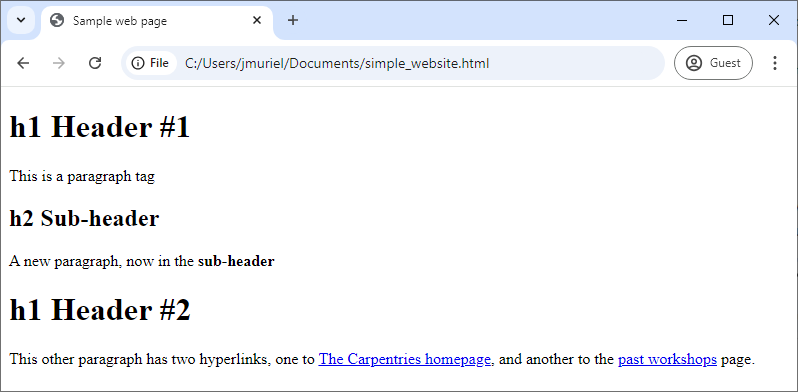
All websites have a Hypertext Markup Language (HTML) document behind them. Below is an example of HTML for a very simple webpage that contains just three sentences. As you look through it, try to imagine how the website would appear in a browser.
HTML
<!DOCTYPE html>
<html>
<head>
  <title>Sample web page</title>
</head>
<body>
  <h1>h1 Header #1</h1>
  <p>This is a paragraph tag</p>
  <h2>h2 Sub-header</h2>
  <p>A new paragraph, now in the <b>sub-header</b></p>
    <h1>h1 Header #2</h1>
    <p>
    This other paragraph has two hyperlinks,
    one to <a href="https://carpentries.org/">The Carpentries homepage</a>,
    and another to the
    <a href="https://carpentries.org/workshops/past-workshops/">past workshops</a> page.
  </p>
</body>
</html>
This text has been saved with a .html extension, SampleWebpageCode.html. If you
open it in your web browser, the browser will interpret the markup
language and display a nicely formatted web page as below.
When you open an HTML file in your browser, what it’s really doing is
reading a structured document made up of elements, each
marked by tags inside angle brackets (<
and >). For instance, the HTML root element, which
delimits the beginning and end of an HTML document, is identified by the
<html> tag.
Most elements have both an opening tag and a closing tag, which
define the start and end of that element. For example, in the simple
website we looked at earlier, the head element begins with
<head> and ends with </head>.
Because elements can be nested inside one another, an HTML document forms a tree structure, where each element is a node that can contain child nodes, as illustrated in the image below.

Finally, we can define or modify the behaviour, appearance, or
functionality of an element using attributes.
Attributes appear inside the opening tag and consist of a name and a
value, formatted like name="value".
For example, in the simple website, we added a hyperlink using the
<a>...</a> tags. To specify the destination
URL, we used the href attribute inside the opening
<a> tag like this:
<a href="https://carpentries.org/workshops/past-workshops/">past workshops</a>.
Here is a non-exhaustive list of common HTML elements and their purposes:
-
<html>...</html>: The root element that contains the entire document. -
<head>...</head>: Contains metadata such as the page title that the browser displays. -
<body>...</body>: Contains the content that will be shown on the webpage. -
<h1>...</h1>, <h2>...</h2>, <h3>...</h3>: Define headers of levels 1, 2, 3, and so on. -
<p>...</p>: Represents a paragraph. -
<a href="">...</a>: Creates a hyperlink; the destination URL is set with the href attribute. -
<img src="" alt="">: Embeds an image, with the image source specified bysrcand alternative text provided byalt. It doesn’t have an opening tag. -
<table>...</table>, <th>...</th>, <tr>...</tr>, <td>...</td>: Define a table structure, with headers (<th>), rows (<tr>), and cells (<td>). -
<div>...</div>: Groups sections of HTML content together. -
<script>...</script>: Embeds or links to JavaScript code.
In the list above, we mentioned some attributes specific to hyperlink
(<a>) and image (<img>) elements,
but there are also several global attributes that most HTML elements can
have. These are especially useful for identifying elements when web
scraping:
-
id="": Assigns a unique identifier to an element; this ID must be unique within the entire HTML document. -
title="": Provides extra information about the element, shown as a tooltip when the user hovers over it. -
class="": Applies a common styling or grouping to multiple elements at once.
This A to Z List gives a comprehensive list of HTML tags.
CSS (Cascading Style Sheets) is code which allows the way that a web page is displayed (colours, fonts etc) to be separated from the content. It allows the same styles to be applied to a set of HTML documents without the need to specify them in each document.
CSS uses rule sets which are applied to the HTML elements using selectors.
You may see selectors applied to HTML elements by tag, class or ID.
These may be useful for targeting elements when web scraping. The CSS
rules may be applied using a tag in the HTML file or
may be in a separate .css file linked from the HTML
file.
An example of two style rules applied to our HTML example are shown below. They can be viewed by opening the WebpageCSS.html file.
HTML
<!DOCTYPE html>
<html>
<head>
  <title>Sample web page</title>
  <style>
        /* CSS Rule */
        h1 {
            color: blue;
            /* Property: value */
            font-size: 24px;
        }

        p {
            color: green;
            font-size: 16px;
        }
    </style>
</head>
<body>
  <h1>h1 Header #1</h1>
  <p>This is a paragraph tag</p>
  <h2>h2 Sub-header</h2>
  <p>A new paragraph, now in the <b>sub-header</b></p>
    <h1>h1 Header #2</h1>
    <p>
    This other paragraph has two hyperlinks,
    one to <a href="https://carpentries.org/">The Carpentries homepage</a>,
    and another to the
    <a href="https://carpentries.org/workshops/past-workshops/">past workshops</a> page.
  </p>
</body>
</html>
For more information this CSS Introduction and CSS Cheat Sheet provide a good starting point.
To summarize: elements are identified by tags, and attributes let us assign properties or identifiers to those elements. Understanding this structure will make it much easier to extract specific data from a website.
Inspecting the web page source code
We will use the HTML code that describes this very page you are reading as an example. By default, a web browser interprets the HTML code to determine what markup to apply to the various elements of a document, and the code is invisible. To make the underlying code visible, all browsers have a function to display the raw HTML content of a web page.
Exercise: Display the source of this page
Using your favourite browser, display the HTML source code of this page.
Tip: in most browsers, all you have to do is do a right-click anywhere on the page and select the “View Page Source” option (“Show Page Source” in Safari).
Another tab should open with the raw HTML that makes this page. See if you can locate its various elements, where the head and body elements start and end. See if you can pickout this challenge box in particular.
You will see that this webpage is quite complex and it may not be easy to pick out the elements that you are looking for. Many webpages are automatically generated and may not be laid out in the straightforward manner of our initial, very simple, example.
Try searching for head> or body> to locate both the start and end of these sections.
Even though these may be difficult to locate, you will see that the same overall structure is still used for the webpage.
The HTML structure of the page you are currently reading looks something like this (most text and elements have been removed for clarity):
HTML
<!doctype html>
<html lang="en" data-bs-theme="auto">
  <head>
    (...)
    <title>Introduction to Web Scraping: Anatomy of a web page</title>
    (...)
  </head>
  <body>
	 (...)
  </body>
</html>
We can see from the source code that the title of this page is in a
title element that is itself inside the head
element, which is itself inside an html element that
contains the entire content of the page.
Say we wanted to tell a web scraper to look for the title of this
page, we would use this information to indicate the path the
scraper would need to follow as it navigates through the HTML content of
the page to reach the title element. We can search for
specific items in the source page code using the built-in developer
console.
Display the console in your browser
- In Firefox, use the More Tools > Web Developer Tools menu item.
- In Chrome, use the More tools > Developer tools menu item.
- In Safari, use the Develop > Show Error Console menu item. If your Safari browser doesn’t have a Develop menu, you must first enable this option in the Preferences, see above.
Here is how the console looks in the Chrome browser:
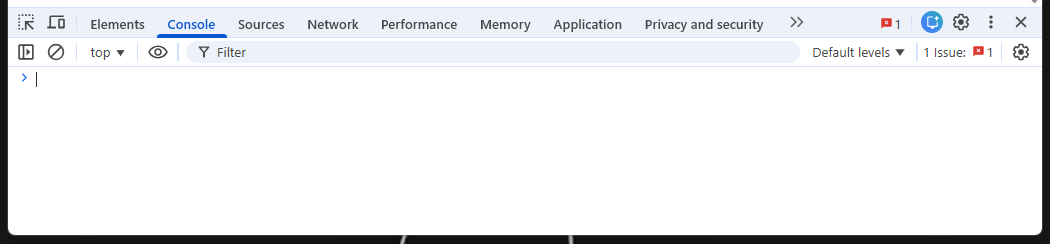
By default the console will probably open in the Console tab. For now, don’t worry too much about error messages if you see any in the console when you open it. We will be using the Elements tab to locate specific items in the web page.
Locate code for specific elements
To find the code for a specific item on a web page, hover over it and right click, selecting Inspect from the dialog displayed (shown below).
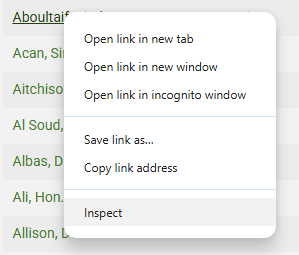
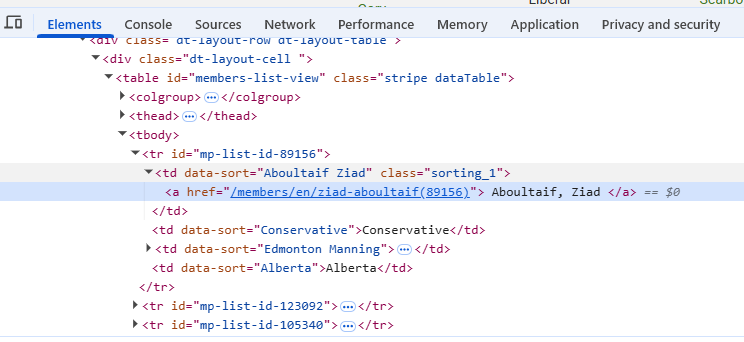
This will automatically move to the Elements tab in the developer console (opening the developer console if not already open) and display the section of code for the selected element. The specific line of code for the element will be highlighted. In the example below a name was selected on the Canadian MPs webpage resulting in the code below:
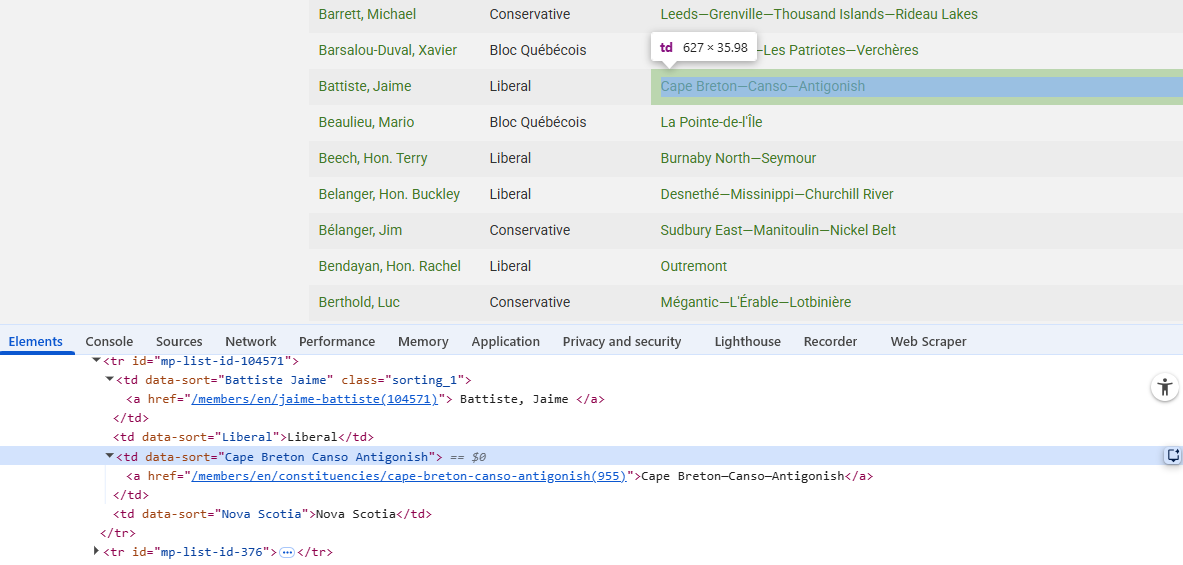
Conversely, by hovering over a line of code in the Elements tab, the corresponding element will be highlighted on the web page, showing the tag and size of the element. This is shown below:
Identify element tag for extracting MP names
Go back to the UK House of Commons webpage. Use the developer console to identify what you might need to search for in order to extract a list of MPs’ names.
Can you see an issue with the data collected if you just searched on this particular page?
The class “primary-info” contains the text for the names.
Note that this information is spread over several pages. It may be necessary to make use of the links for further pages in order to extract all of the required information.
Dynamic websites
We are not going to cover these in detail in this lesson but you should be aware of dynamic websites and how the HTML code observed might differ between these and a static website with no interactive elements.
Visit this practice webpage created by Hartley Brody for learning and practicing web scraping: Oscar Winning Films (but first, read the terms of use). Select “2015” to display that year’s Oscar-winning films.
Now try viewing the HTML behind the page using the View Page Source tool in your browser.
Challenge
Can you find the Best Picture winner Spotlight anywhere in the HTML?
Can you find any of the other movies or the data from the table?
If not, how could you scrape this page?
When you explore a page like this, you’ll notice that the movie data (including the title Spotlight) isn’t present in the initial HTML source. That’s because the website uses JavaScript to load the information dynamically. JavaScript is a programming language that runs in your browser and allows websites to fetch, process, and display content on the fly — often in response to user actions, like clicking a button.
When you select “2015”, your browser runs JavaScript (triggered by
one of the <script> elements in the HTML) to retrieve
the relevant movie information from the web server and dynamically
update the table. This makes the page feel more interactive, but it also
means that the initial HTML you see doesn’t contain the movie data
itself.
You can observe this difference when using the “View page source” and “Inspect” tools in your browser: “View page source” shows the original HTML sent by the server, before any JavaScript runs. “Inspect” shows the rendered HTML, after JavaScript has executed and updated the page content.
- Every website is built on an HTML document that structures its content.
- An HTML document is composed of elements, usually defined by an
opening
<tag>and a closing</tag>. - Elements can have attributes that define their properties, written
as
<tag attribute_name="value">. - CSS may be used to control the appearance of the rendered webpage.
- Dynamic webpages may have content which isn’t loaded until the item is selected.
Content from Manually scrape data using browser extensions
Last updated on 2026-02-26 | Edit this page
Overview
Questions
- How can I get started scraping data off the web?
- How do I assess the most appropriate method to scrape data?
Objectives
After completing this episode, participants should be able to…
- Understand the different tools for accessing web page data
- Use the Web Scraper tool to extract data from a web page
- Assess the appropriate method for gathering the required data
Using the Web Scraper Chrome extension
Now we are finally ready to do some web scraping using Web Scraper Chrome extension. If you haven’t it installed on your machine, please refer to the Setup instructions.
For this lesson, we will again be using the UK Members of Parliament webpages. We are interested in scraping a list of MPs and their constituencies with the help of Web Scraper.
First, let’s focus our attention on the first webpage with the list of
MPs.
We are interested in downloading the list of MPs’ names and their
constituencies.
There are two ways of using Web Scraper, either using the Wizard GUI or using selectors in the developer tools. The wizard gives an easy to use interface but may be less flexible and doesn’t provide the ability to customise that is possible using the developer tools.
Using the Web Scraper wizard
With the extension installed the Wizard window can be opened by selecting the Web Scraper icon on the browser toolbar:
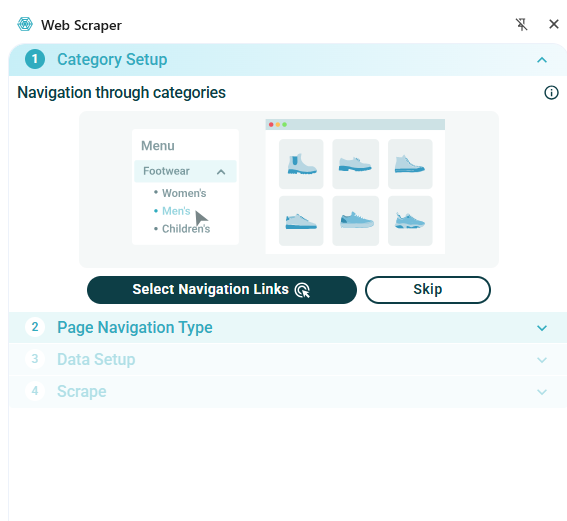
The wizard allows you to select any links to navigate to other pages. In our example we don’t need to do this so we will select Skip. In the Page Navigation Type tab, select whether to make selections from the listing page or whether to open links.
- We will use the Listing page option.
- Select Continue - this will auto-generate selectors and give a preview of the data.
The image below shows an example of the data which is automatically extracted from this web page without any selection:
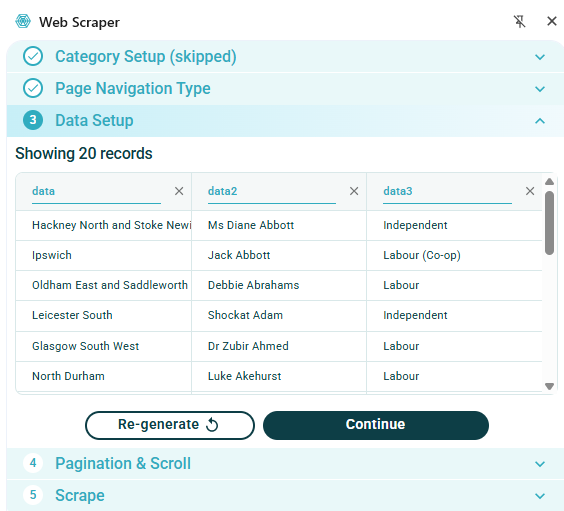
Note that this has only gathered the names of MPs for one page, collecting about 20 entries out of a total of 650. The next section Pagination & Scroll allows multiple pages to be selected for scraping:
- Choose Select Next Page button.
- Select the appropriate means of selecting more pages. This could be either a set of numbered pages or a ‘next page’ button. Several buttons can be selected if needed.
- On completion click the green Done selecting button.
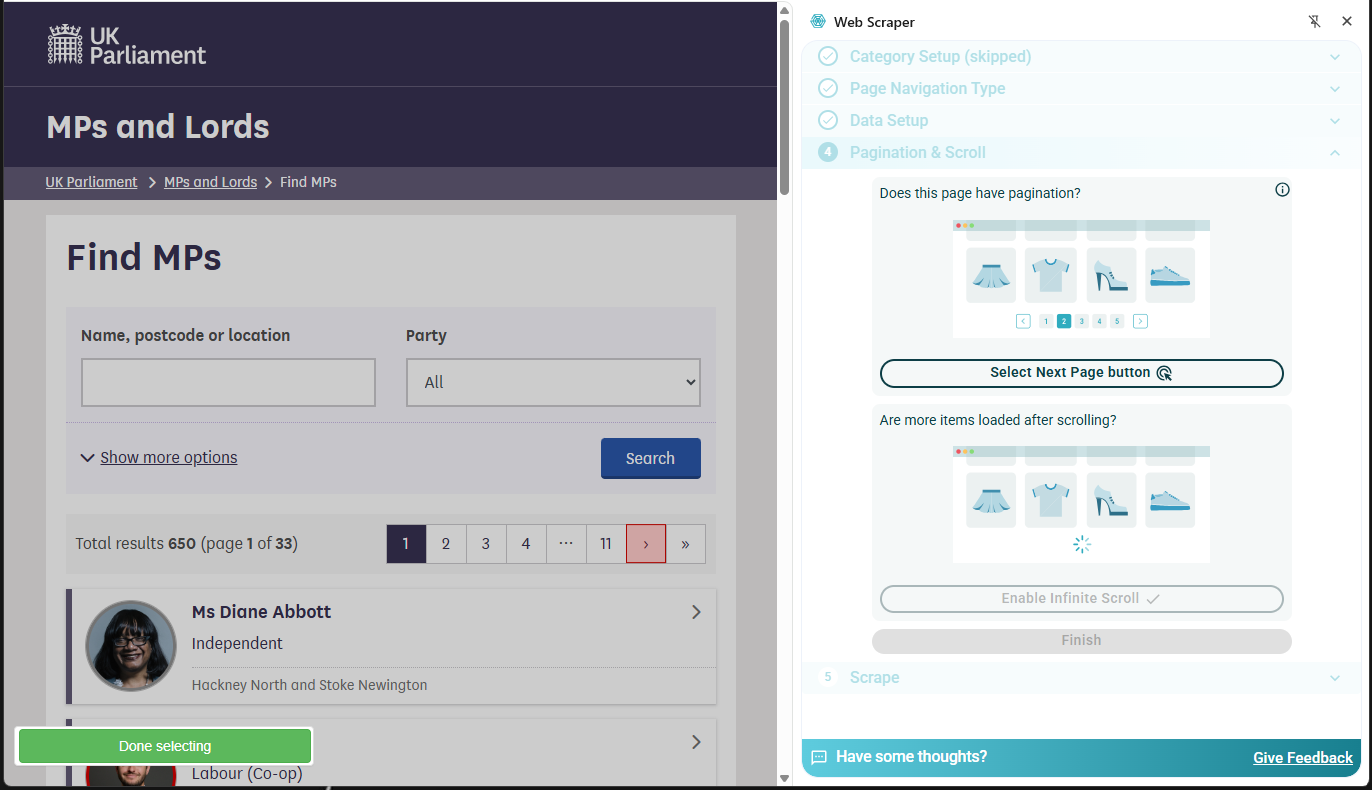
On selection of the Finish button the dialog will show that scraper configuration is ready and the Scrape the page button can be selected.
Now data has been scraped for all 650 MPs from all pages:
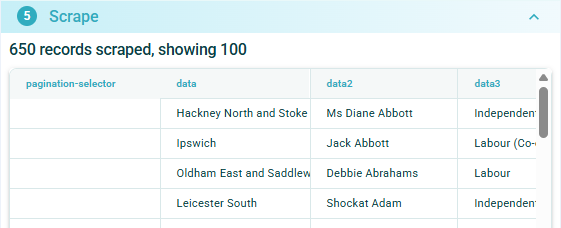
The data scraped can now be downloaded as either a .xlsx or .csv file.
Using Web Scraper with the browser developer console
- Open the Developer Tools and open the Web Scraper
tab
- If the developer tools are docked at the side of the screen use the three dots a the top right of the dialog and select the option to dock at the bottom (see below)
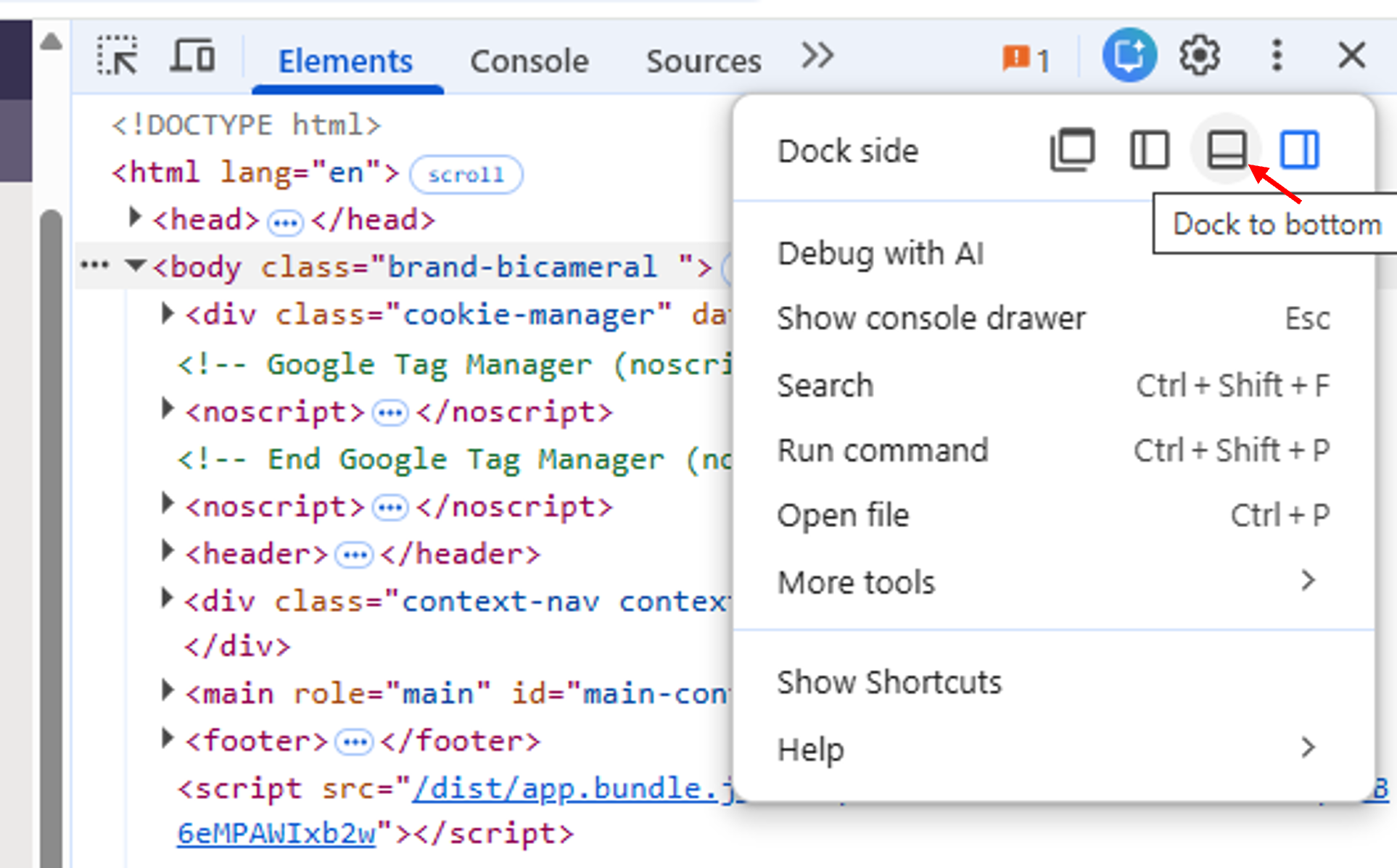 Dialog to select Developer Tools docking position
The Web Scraper extension works on a “Sitemap”. The previous exercise will already have created a sitemap and this will be listed in the opening window on the tab. Alternatively, a new sitemap can be created: - Select Create new sitemap-> Create Sitemap - Add a Sitemap name and Start URL for the webpage you wish to scrape - Click Create Sitemap
When a sitemap has been created then selectors can be created to govern how the webpage will be scraped. For a webpage created by the Wizard, the selectors generated automatically can be inspected, edited and new selectors created as required.
It is a good idea to spend some time navigating the website and taking a look at the underlying code, using the Inspect facility, to decide on the best way to set up the selectors. The code will show the type of elements underlying the items on the webpage and may help with deciding how to scrape the page.
The MP information data is spread across several pages. The first selector that we will create will enable the scraper to automatically scrape multiple pages.
- Select the Add new selector button. In the resulting
dialog:
- Choose an ID for the selector, e.g. Paging
- The type menu offers a drop down menu of available selectors. In this case, we will choose the Pagination selector
- Use the Select button to select the relevant elements on the webpage. In this case the pagination uses the numbered boxes at the top or bottom of the page. More than one selection can be made by using Shift+Enter. In the example shown below, just two pages have been selected.
- The Element Preview button can be used to check that the correct items have been selected.
- The Data Preview button will show the data that will result from this scraping operation.
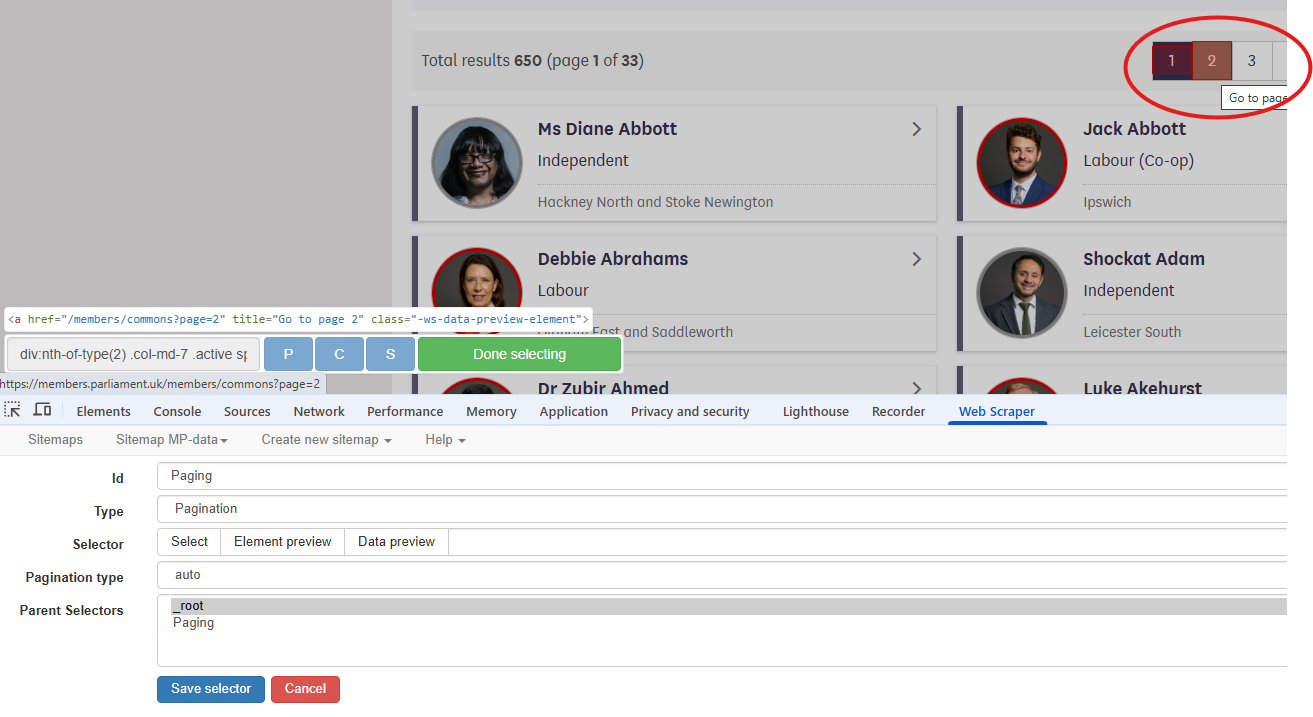
The information to be scraped is on the page navigated to by selecting one of the MP list boxes. We will set up a selector to select each box on the page. Note that, because the pagination selector has already been set up, it is only necessary to do this for one page.
The next information to be selected is on the page arrived at by the links selected in the previous step. By clicking on the selector just created in the list it can be seen that the link breadcrumbs update:
- Select the Paging row in the dialog
- Create a new selector as before, this time choosing a Link selector
- When using the Select button all MP list boxes can be selected by clicking on a second box.
- Check the Multiple option
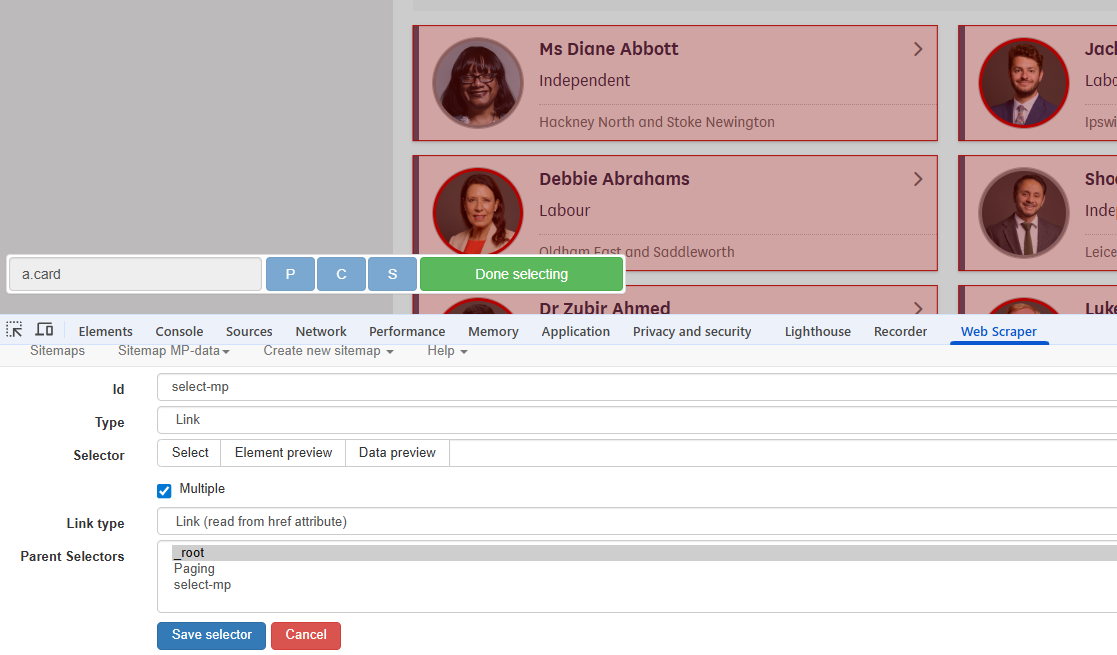
Again, the next information to be selected is on the page arrived at
by the links selected in the previous step. By clicking on the
select-mp selector in the list it can be seen that the link
breadcrumbs have again been updated:
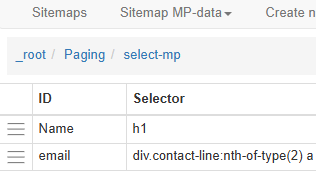
We now need to navigate to one of the MP pages by clicking on one of the list boxes. The required data can now be gathered by adding more selectors.
- Create a Text type selector
- Select the field containing the name
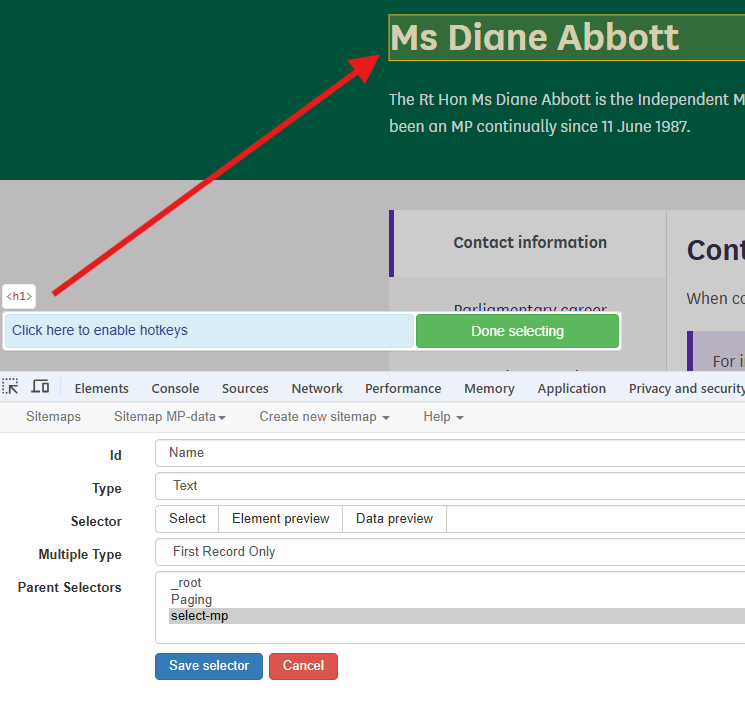
We can use the same method to create a selector for the email
address. There should now be two selectors within the
select-mp page.
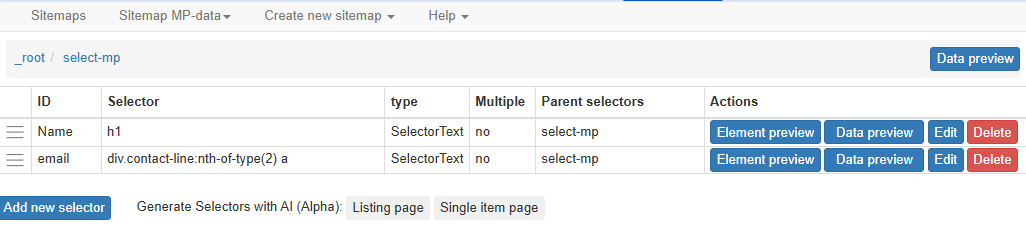
The sitemap is now ready for scraping. Select Sitemap name -> Scrape. The Request interval and Page load delay options can be left at the default 2000ms. Clicking the Start scraping button will start the scraping process. A window will open, showing the pages being accessed in the scraping process.
On completion of scraping it may be necessary to click the Refresh button in order to view the data. A table will be displayed showing the data extracted. The Sitemap name -> Export Data option allows export in either .xlsx or .csv format.
MP-data.xlsx is the file downloaded after the scraping exercise described above. On examination of this file, it can be seen that all of the MPs’ names have been extracted but the list of email addresses is incomplete.
Challenge
MP-data.xlsx is the file downloaded after the scraping exercise described above. On examination of this file, it can be seen that all of the MPs’ names have been extracted but the list of email addresses is incomplete.
Why do you think that there are some email addresses missing? - Take a look at the code for the email address information. - Compare the information for MPs where the email address was found and where it was not
The code for the email address on the Ms Diane Abbott page is shown below:
HTML
(...)
<div class="col-md-7">
   <div class="contact-line">
      <span class="label">Phone Number:</span>
      <a href="tel:020 7219 4426">020 7219 4426</a>
   </div>
   <div class="contact-line">
      <span class="label">Email Address:</span>
      <a href="mailto:diane.abbott.office@parliament.uk"> diane.abbott.office@parliament.uk</a>
   </div>
</div>
(...)
If we look at the selector code: “div.contact-line:nth-of-type(2) a” we can see that looks like it has picked out the second “contact-line” class and then used the text from the “a” tag. If we look at the similar section of code for an MP with just an email address in the contacts (no phone number) then we can see that a selector which searches for the second element will not yield a result.
Web Scraper includes some extra functionality which allows a more explicit search to be carried out using JQuery selectors. It is beyond the scope of this lesson to cover this in detail. There is information in the Web Scraper JQuery Selectors documentation.
We will look at how to use the contains option to extract the complete list of email addresses.
Using JQuery to refine selector options
The JQuery contains value can be used to target elements which contain a particular string. Inspection of the “contact-line” class shows that the email address item contains the string “Email Address”. The selector can be edited manually to
div.contact-line:contains(‘Email Address’) a
This will now only target the contact-line elements which contain the “Email Address” text.
Inspection of the new downloaded spreadsheet shows that all of the emails have now been extracted.
Challenge
Modify your sitemap to also gather the phone number information for each MP
- Data that is relatively well structured (in a table) is relatively easily to scrape.
- More often than not, web scraping tools need to be told what to scrape.
- JQuery can be used to define more precisely what information is to be scraped.
Content from Ethics and Legality of Web Scraping
Last updated on 2026-03-03 | Edit this page
Overview
Questions
- When is web scraping OK and when is it not?
- Is web scraping legal? Can I get into trouble?
- What are some ethical considerations to make?
- What can I do with the data that I’ve scraped?
Objectives
After completing this episode, participants should be able to…
- Discuss the legal and ethical implications of web scraping
In this section we will look at some of the legal issues associated with web scraping.
Please note that this does not constitute legal advice on the practice of web scraping.
Copyright basics
Copyright is a form of intellectual property that automatically gives the creators or their employers certain rights over how their works can be used by others. In the broadest sense, it allows creators to monetise their creations as well as to be identified as the creator. The Copyright, Design and Patents Act 1988 provide the legal protections for creators whilst also giving a number of exceptions that allow re-use without permission.
Copyright coverage
Copyright covers a range of works, find a list of works covered by copyright below:
- Literary works (written works e.g. a book, computer code, websites)
- Dramatic works
- Musical works (e.g. a recording of a song)
- Databases
- Artistic works (e.g. a photo, painting, sculpture, diagram)
- Sound recordings
- Films (e.g. a recording of a moving image)
- Broadcasts (e.g. a transmission of a television programme)
- Typographical arrangements in a published edition
Not everything that a person creates is automatically granted protection by copyright. For example, the written sentence ‘Hello, how are you?’ is unlikely to be protected by copyright as it does not demonstrate creativity or originality and took the individual little effort or skill to write it.
Duration of copyright
Copyright lasts for a longer period than most people expect:
- For most published items copyright lasts until the end of the 70th year in which the last creator of that work died
- The typographical arrangement of a publication (e.g. how a printed work has been laid out on the page and arranged) is in copyright for 25 years of the first edition that uses that typography.
It is important to note that the copyright duration in unpublished works (e.g. much archival material) may last for much longer than the 70 years after death of the creator.
The UK Government website has a useful and detailed listing that covers the duration of copyright for a range of works.
Copyright owner
Ownership determines control over the work’s use if not covered by a legal exception. Owners have the right to sell the work, license it to others, and object to its mistreatment. Unless overridden by a contract, copyright belongs to the person who created the work. It is crucial to contact the correct owner for permission to use a work, as ownership can change. For example, an academic transfers copyright to a publisher as part of signing a publishing agreement or after a creator’s death it may transfer to their next of kin. Physical ownership of an item does not mean you also own the copyright in the item; these are two separate types of property ownership.
Scraping and copying
When scraping a website you are always copying content — even if only temporarily in memory. That means copyright law applies. A website’s text, images, code, and even its layout can be protected works. Remember that if you want to copy any work still in copyright you will need a legal basis to allow that. There is no ‘web scraping’ exception, the closest we have is an exception for non-commercial research of text and data analysis.
A work that is no longer in copyright is called a Public Domain work; this means that its copyright duration has now passed and you are free to use the work without requiring permission. Sometimes people will say that something is in the public domain believing that this means ‘publicly available.’ These are two separate things and just because something is publicly available for you to see online does not mean that it does not have copyright protection. Most online items will still be in-copyright.
Non-commercial research text and data analysis
This exception allows you to copy items to bring together a corpus of materials for computational analysis if it meets the following criteria:
- You must have lawful access to the work (e.g. openly available online or via a library subscription. Bypassing a paywall is not lawful access); and
- It must be done for the sole purpose of non-commercial research; and
- Unless impossible the copy must be accompanied by sufficient acknowledgement.
If your use is covered by this exception any contract term that purports to restrict you from copying for this purpose is unenforceable.
If you want to transfer the copy of the work to anyone else or use it for another purpose, then you would need permission of the copyright owner. This means that if you later wish to commercialise you may need to seek permissions.
Web scraping for commercial purposes
If your use were for a purpose other than non-commercial research then you have no legal exception to rely upon, you would need to abide by any contact terms. Companies often do not want their website information to be scraped. To reduce your legal risk, you would need to ensure that you followed the website’s own terms and conditions and check those as well as follow any restrictions mentioned in robot.txt files. Robot.txt files will tell web scraping tools which parts of the website it is not permitted to scape. The key points to consider are:
- Is there copyright in the material that you are scraping?
- Do you have legal access to the material?
- Would your use breach any contract you have with the provider (this could be the websites terms of service)? Remember that violating terms of a contract can constitute a breach of contract and risk legal claims against you.
- Does your use go against any information in robot.text files?
- Are you trying to create a competing product or one that will economically harm the website that you are scraping?
- Are there any data protection issues?
For commercial use it would be better to enter into an agreement with the people whose materials you are hoping to scrape.
Technical protection barriers
The Computer Misuse Act 1990 makes it a criminal offence to access data or a computer programme without authorisation. This was aimed at preventing hacking attacks, but it does means that you should not circumvent any technical protection measures, logins, or CAPTCHA to scrape the service.
Database Rights
Database rights protect the substantial investment someone may have made to create their database in obtaining and verifying their data from independent sources. Protection originally lasts for 15 years but can be longer if significant amendments are made to the database. If you were to scrape substantial parts of their database (this can be quantity of material or the quality of it) then you may be infringing their rights especially if your use were to harm them economically e.g. by creating a competing product
Scraping of personal data within websites
If you do not require personal data as part of your research then try and ensure that your scraping does not collect the personal data of individuals e.g. names, email addresses etc. As well as meeting copyright requirements you need to meet data protection requirements too. In the UK, the fact that someone’s personal data may be publicly available does not mean that you can just re-use that information without either relying on an exception or exemption. This includes information that you may find on social media websites or registers such as Companies House. If providing the people whose data you would be using with privacy information would be impossible or involve a disproportionate effort, then you must carry out a Data Protection Impact Assessment (DPIA). Completing a DPIA helps you think about the risks involved in how you are using someone’s data and how you can mitigate them. The University has a useful Data Protection Canvas course which also includes information about when and how to complete a DPIA. The course will also help you to assess if you have a legal basis for processing someone’s personal data.
APIs
Where possible it may be better to use an authorised API for the webservice. Several online services offer these as do some of the subscription databases provided by the Libraries and Learning Resources. There is sometimes openly available information about this on some providers websites. Others require the Library to provide the user with an API key and limit how many users can access this at one time. Unfortunately, some providers do require an additional cost for an API with their services. The Library can request quotes for this but is unable to fund them. If you are interested in using content provided by the Library, then contact copyright@contacts.bham.ac.uk.
Denial of Service
The first and most important thing to be careful about when writing a web scraper is that it typically involves querying a website repeatedly and accessing a potentially large number of pages. For each of these pages, a request will be sent to the web server that is hosting the site, and the server will have to process the request and send a response back to the computer that is running our code. Each of these requests will consume resources on the server, during which it will not be doing something else, like for example responding to someone else trying to access the same site.
If we send too many such requests over a short span of time, we can prevent other “normal” users from accessing the site during that time or even cause the server to run out of resources and crash.
In fact, this is such an efficient way to disrupt a web site that hackers are often doing it on purpose. This is called a Denial of Service (DoS) attack.
Since DoS attacks are unfortunately a common occurrence on the Internet, modern web servers include measures to ward off such illegitimate use of their resources. They are watchful for large amounts of requests appearing to come from a single computer or IP address, and their first line of defence often involves refusing any further requests coming from this IP address.
A web scraper, even one with legitimate purposes and no intent to bring a website down, can exhibit similar behaviour and, if we are not careful, result in our computer being banned from accessing a website.
Scraping of subscriptions resources provided by the Library can also trigger our systems to deny access. It can be worth discussing use ahead of time with the relevant parties.
Consider asking
Depending on the scope of your project, it might be worthwhile to consider asking the owners or curators of the data you are planning to scrape if they have it already available in a structured format that could suit your project. If your aim is to use their data for research, or to use it in a way that could potentially interest them, not only it could save you the trouble of writing a web scraper, but it could also help clarify straight away what you can and cannot do with the data.
Further help
More information about copyright and text and data mining can be found on the University’s Copyright for researchers pages.
- When web scraping you need to consider copyright, database rights, data protection and website terms.
- A UK exception allows non-commercial text and data mining only with lawful access and proper acknowledgement.
- Commercial scraping requires following terms of service, robots.txt.
- For all web scraping you need to avoid any circumvention of technical barriers.
- Key risks include collecting personal data, overwhelming servers, and inadvertently infringing rights — using APIs or asking data owners is often safer.